How to Use LM Studio: Getting Started with Local LLMs
The core features and usage of LM Studio, a free desktop app for downloading and running local LLMs through a GUI.
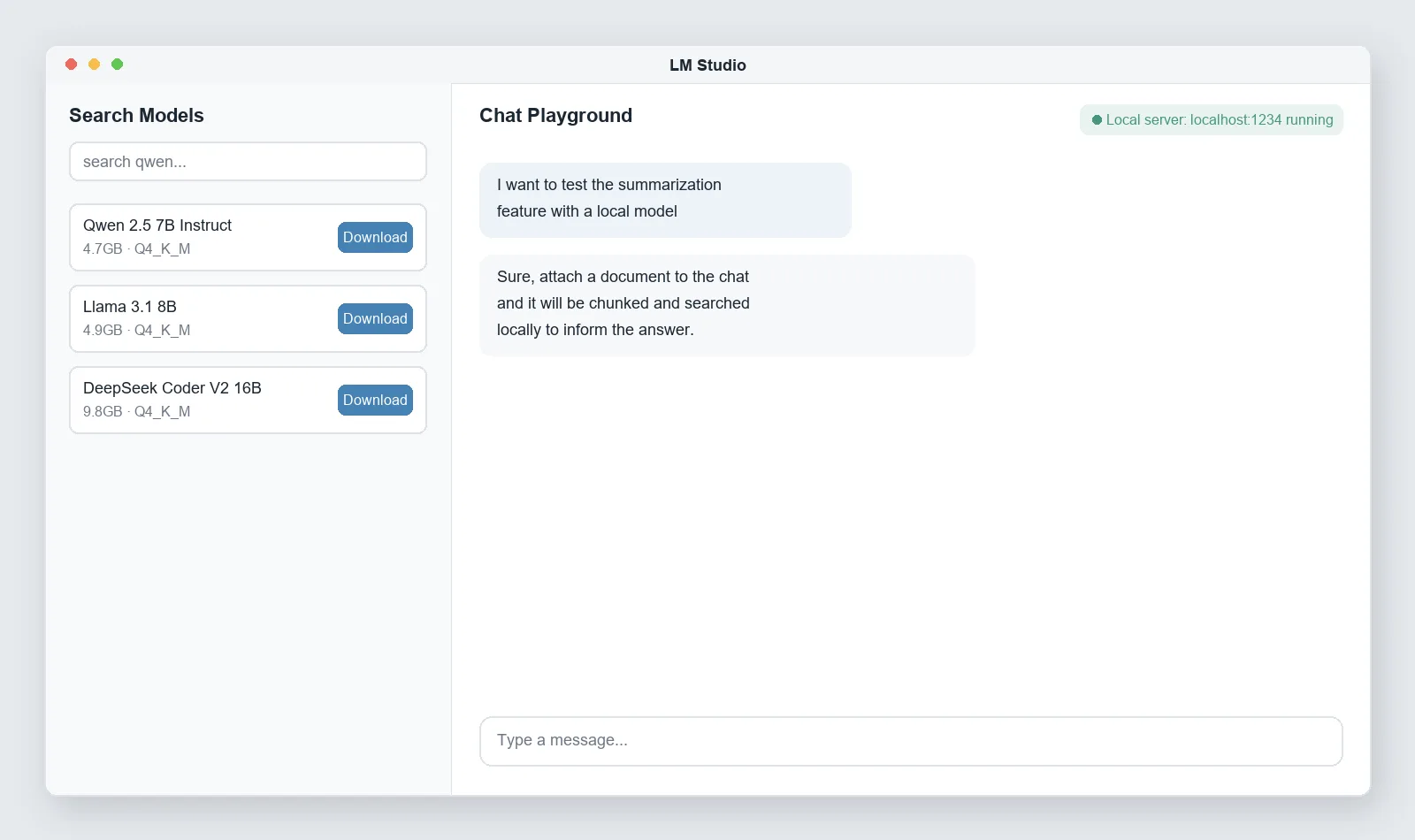
LM Studio is a free desktop app that lets you download and run a Local LLM entirely through a GUI, with no command line required. The core idea is that you can search for a model, download it, and start chatting right away.
What LM Studio does
- Model discovery and download: search models hosted on Hugging Face directly in the GUI and download them with one click.
- Chat playground: a built-in chat screen to converse with and test a downloaded model right away.
- Local API server: turning on the local server inside LM Studio opens an endpoint compatible with the OpenAI API format. That means other tools that support the OpenAI API (Continue.dev, Open WebUI, etc.) can connect directly to a local model running in LM Studio.
- Document attachments: attach a PDF, DOCX, Markdown, or code file to a chat, and LM Studio chunks and embeds it locally, retrieving relevant content during the conversation to inform its answers — essentially a simple form of RAG built in.
- MCP client support: supports MCP, letting a local model participate in agentic workflows that use external tools.
Basic workflow
- Install and launch LM Studio.
- Find and download a model in the model search screen (larger models need more storage and memory).
- Load the model in the chat screen and start a conversation right away.
- To use this model from another program, turn on the local server feature and point that program’s API address at LM Studio’s local address.
Pricing
LM Studio is free for both personal and business use, with no limit on usage of models run locally.
Relationship with Ollama
Ollama serves a similar purpose to LM Studio. Both let you run an LLM locally, but they differ in character — LM Studio is GUI-centric, while Ollama is CLI (command-line) centric. A detailed comparison is covered in Ollama vs LM Studio.
Limitations and caveats
- Model performance and speed depend heavily on the size of model used and your computer’s GPU/memory specs.
- The features described here reflect August 22, 2026; since this tool updates frequently, it’s worth checking the latest release notes before installing.
- The simple document-attachment feature in the chat UI isn’t a substitute for a proper RAG pipeline. For building real RAG, see What Is RAG?.
Conclusion
LM Studio is the best fit for “I want to try a local LLM right away without needing to be comfortable with a terminal.” Finding a model, downloading it, chatting with it, and connecting it to other programs via API when needed — the whole flow is handled in one GUI.